Table of Contents
ToggleTL;DR — Quick Summary
- IPTV lets users watch television through the internet instead of traditional cable or satellite.
- It streams live channels and on-demand content to TVs, smartphones, tablets, and IPTV boxes.
- Setup requires an IPTV box, stable internet connection, subscription access, and app installation.
- Recommended internet speed: 10 Mbps for HD and 25+ Mbps for 4K streaming.
- Installation involves connecting the box to your TV, configuring internet, and logging into the IPTV app.
- IPTV offers extensive channel variety, flexible viewing, and often lower costs than cable TV.
- Limitations include dependence on internet quality and provider reliability/legal rights.
IIf you just got your IPTV box and you are staring at it like what do I even do with this then you are in the right place. A lot of first time buyers feel this way. The box is sitting there and you are not really sure where to start. But here is the thing setting up an IPTV set-top box is not nearly as hard as it looks.
This guide covers all four devices that Tashan IPTV ships out which are the MAG540w3 the MAG544w3 the MAG555 and the UNIPRO 4. Follow along and your IPTV service will be running before you know it. No tech background needed and no guessing either.
What to Check Before You Plug Anything In
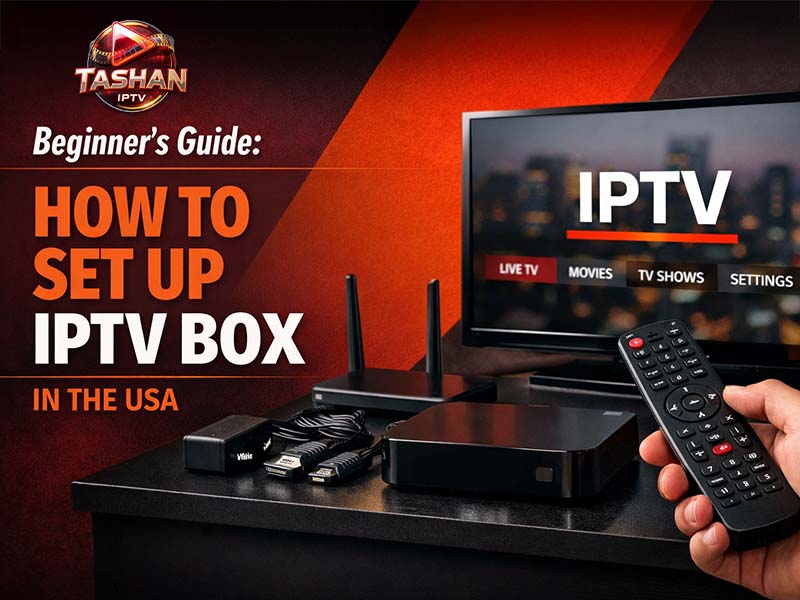
First things first just open the box and lay everything out on a table. Every IPTV set-top box Tashan ships to the USA comes with three things inside. There is a power adapter that already works with US outlets an HDMI cable and a remote control. You do not need any extra converters or anything like that.
Once you see all three things are in there you are already closer to done than you think. If your TV has one open HDMI port free then you are about 90 percent of the way there before the device is even powered on. That is genuinely how straightforward this is going to be.
Setting Up the MAG Series (MAG540w3 MAG544w3 and MAG555)
The MAG boxes are the most popular IPTV set-top box options that Tashan carries and they are really solid devices. There is one step in the setup that trips a lot of people up and that is the portal URL part. We are going to break that down so clearly that you will not have any issues with it at all.
Step 1 – Connect the Box to Your TV
Take the HDMI cable and plug one end into the back of the MAG box. Plug the other end into any open HDMI port on your TV. Then connect the power adapter and switch the device on. That is your first step done.
Step 2 – Switch Your TV to the Right Input
Pick up your TV remote and change the input or source to whichever HDMI port you just used. So if you plugged into HDMI 1 then switch the TV to HDMI 1. The MAG loading screen will show up on your TV and that means everything is connected right.
Looking for More Desi Entertainment?
IPTV streaming apps bring Indian TV shows, movies, and regional content to a global audience with flexible pricing and HD streaming. Explore the world of IPTV for the best Desi entertainment experience.
Discover Tashan IPTV Suscription NowStep 3 – Get Connected to Wi-Fi
Head into Settings then go to Network and then select Wireless. Now here is something worth paying attention to. Both the MAG540w3 and the MAG544w3 support dual band Wi-Fi meaning they can connect to either 2.4GHz or 5GHz. If your router is sitting in a different room from your TV then pick the 5GHz band. It handles IPTV channels a lot better especially when you are watching live sports or something that needs a steady connection.
Step 4 – Type In Your Portal URL
Okay so this is the step that gets people. It is not hard but you have to do it right. Go to Settings then Servers then Portals. There will be a text field on the screen waiting for your portal URL. That URL comes from your IPTV service provider which in this case is Tashan IPTV. After you complete your purchase Tashan sends the portal URL to you through email or WhatsApp. Open that message and type the URL into the field exactly how it appears. It is case sensitive so even one wrong capital letter will stop it from working. Take your time with this part.
Step 5 – Restart the Device and You Are Done
Once the portal URL is saved just restart your MAG box. When it comes back on your full IPTV channel list will load up on its own. You do not have to do anything else. Just sit back and start watching.
Setting Up the UNIPRO 4 IPTV Box
If you picked up the UNIPRO 4 then honestly you got the easiest setup of the four. This device runs on Android so the whole process feels pretty familiar even if you have never set up an IPTV box before in your life.
Step 1 – Connect to Your TV
Same starting point as the MAG setup. Run the HDMI cable from the UNIPRO 4 to your TV plug in the power and switch your TV input over to the right HDMI port.
Step 2 – Connect to Your Home Wi-Fi
On the Android home screen just tap into Wi-Fi settings and connect to your home network. It works the same way as connecting any Android phone or tablet to Wi-Fi so there is nothing new to figure out here.
Step 3 – Find and Open the Tashan IPTV App
Look around the home screen for the Tashan IPTV app. It should already be installed on the device. If for some reason you do not see it right away Tashan will send you a download link after your purchase and you can grab it from there in about a minute.
Step 4 – Log In and Start Watching
Type in the username and password from Tashan and that is the whole setup. Your IPTV channel library opens up right away and everything is ready to stream.
Troubleshooting Tips for Viewers in the USA
If something feels off after you finish setup here are the things to check first before reaching out to anyone.
Run a Speed Test on Your Internet
A slow connection causes most of the streaming problems people blame on their IPTV service. For 4K IPTV streaming you want at least 25 Mbps coming in. For regular HD IPTV channels 15 Mbps usually does the job fine. Just go to fast.com and run a quick test. If the numbers are low that is your answer right there.
Plug In an Ethernet Cable for Big Live Events
Wi-Fi works well enough most of the time but when you are watching something like IPL cricket or a major live sports broadcast the connection needs to be as solid as possible. Plugging your IPTV set-top box directly into your router with an Ethernet cable cuts out almost all buffering. It is a small thing that makes a big difference.
Portal URL Still Not Loading on Your MAG Box
Go back and look at what you typed in. Check for extra spaces at the beginning or end and make sure the capitals match exactly what Tashan sent you. If you have checked all of that and it is still not working just message your IPTV provider through the Tashan support link. They will fix it quickly.
Unlock Unlimited Desi Entertainment Today!
With Tashan IPTV, you can stream Indian TV, movies, regional channels, and more — anytime, anywhere. Get access to high-definition entertainment at an affordable price.
Start Tashan IPTV Free Trial NowYou Are Good to Go
See that was not bad at all. Whether you set up the MAG540w3 the MAG544w3 the MAG555 or the UNIPRO 4 your IPTV box should be fully working right now. If you have not bought a plan yet just head over to the Tashan IPTV plans page and pick the one that fits your household best. Every purchase comes with setup support included so you will never be left figuring things out on your own.
Frequently Asked Questions
What internet speed do I need for my IPTV box in the USA?
For smooth IPTV streaming, you should have at least 15 Mbps for HD channels and 25 Mbps or higher for 4K streaming. A wired Ethernet connection is usually more stable than Wi-Fi for uninterrupted viewing.
Where do I find my portal URL for the MAG540w3 or MAG544w3?
Tashan IPTV sends your portal URL immediately after purchase. You can find it in your email inbox or WhatsApp message shared by the Tashan IPTV support team.
Is the UNIPRO 4 easier to set up than a MAG box?
Yes. The UNIPRO 4 runs on Android and uses a dedicated IPTV app, which eliminates the need for manual portal URL configuration. It is considered one of the most beginner-friendly IPTV set-top boxes.
Can I connect my IPTV box to any TV in the USA?
Absolutely. Devices like the MAG540w3, MAG544w3, MAG555, and UNIPRO 4 use standard HDMI connections, making them compatible with almost all modern TVs used in US households.